
Set project roles and per-job access
Before you begin
Understand the two-layer model before you start changing things, because it's what makes the rest sensible. A person has one company role that sets their ceiling, and a project role on each job they're on. The project role can narrow the company role on any of the access domains — and in five field domains it can raise someone to Write, but no further. A superintendent who is read-only on cost company-wide does not become a cost editor because someone gave them a project role.
Know which jobs each person is actually on. Per-job access is only worth configuring if project membership reflects reality.
Steps
-
Go to Admin & Settings → Governance → Permissions, then open the Project Roles section.
-
Review the shipped role templates: Project Manager, Superintendent, Foreman, Project Engineer, Estimator, Cost Engineer, Safety Officer, Owner Representative, Accountant, and AI Agent. Each carries a Shipped badge and can't be edited directly, which is what keeps a sensible default always available to fall back to.
-
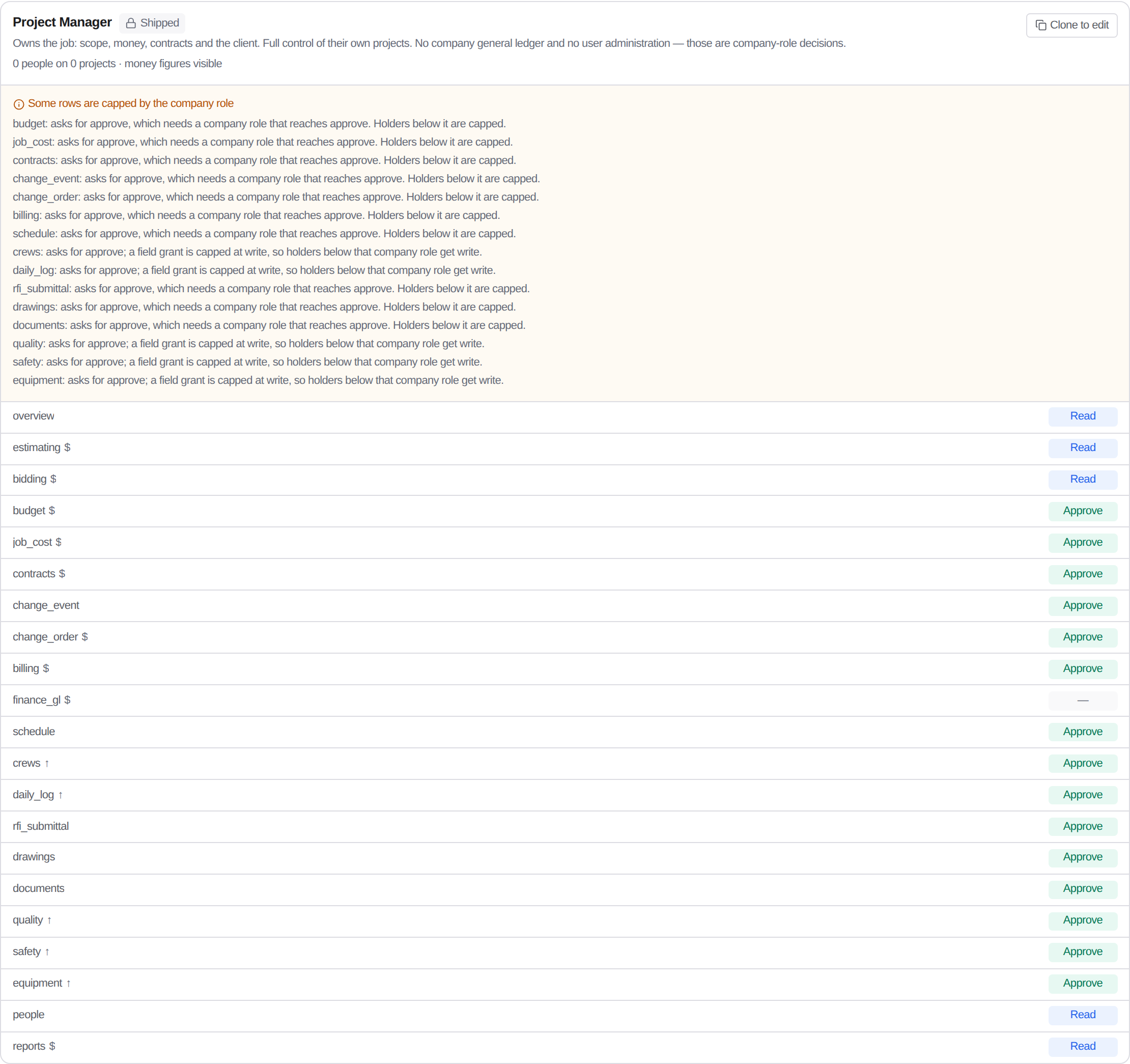
Read a template's grid. It's 21 access domains — overview, estimating, bidding, budget, job cost, contracts, change events, change orders, billing, finance GL, schedule, crews, daily log, RFIs and submittals, drawings, documents, quality, safety, equipment, people, and reports — with a level on each.
-
Check the money decision separately. Each template reads either money figures visible or money figures masked, and domains that carry money are marked. This is deliberately its own switch: plenty of people need full access to a job and no business seeing its margin.
-
To customise, click Clone to edit, then Create clone. You're editing your copy, never the shipped original.
-
Adjust levels per domain on the clone. Watch for the banner reading Some rows are capped by the company role — that's the impact preview telling you which rows you just set won't take effect, because the person's company role is lower. Fix the company role or accept the cap; don't save expecting something the system won't honour.
-
Assign the role to people on the job.
-
When someone questions their access, use Explain. It shows the level they have on each domain and a plain-English sentence for why — which layer produced it.
What happens next
Access is computed from the intersection every time, not copied at assignment. Changing someone's company role immediately changes what they can do on every job, and changing a project role changes only that job. Nothing needs to be re-applied by hand.
The AI Agent template is a real project role like the others. An agent added to a project gets an access profile that can be inspected and narrowed the same way a person's can, which is what makes an agent's reach auditable rather than assumed.
Where the record lives
Templates, clones, and assignments are kept under Admin & Settings → Governance → Permissions, and the Explain view will reconstruct a person's effective access on any job on demand. That matters when an auditor asks not "what is this person's role" but "what could this person actually see in March".
Troubleshooting
Someone still can't see a screen after you raised their project role: their company role is the cap. The impact preview says so when you save, and Explain says so afterwards.
A field person needs Write on daily logs but is read-only company-wide: that's the case the five field domains exist for. A project role can raise them to Write there specifically without touching anything else.
You want to change a shipped template: you can't, and that's the point. Clone it. The shipped version stays as a known-good baseline you can compare a drifted clone against.
Still stuck?
Send this straight to support (it goes directly to support@groundworkai.io).